What Are Minecraft Mods, and What Should You Get?
See how Minecraft mods work, what they add, and how to install them safely.
Understanding Minecraft Mods
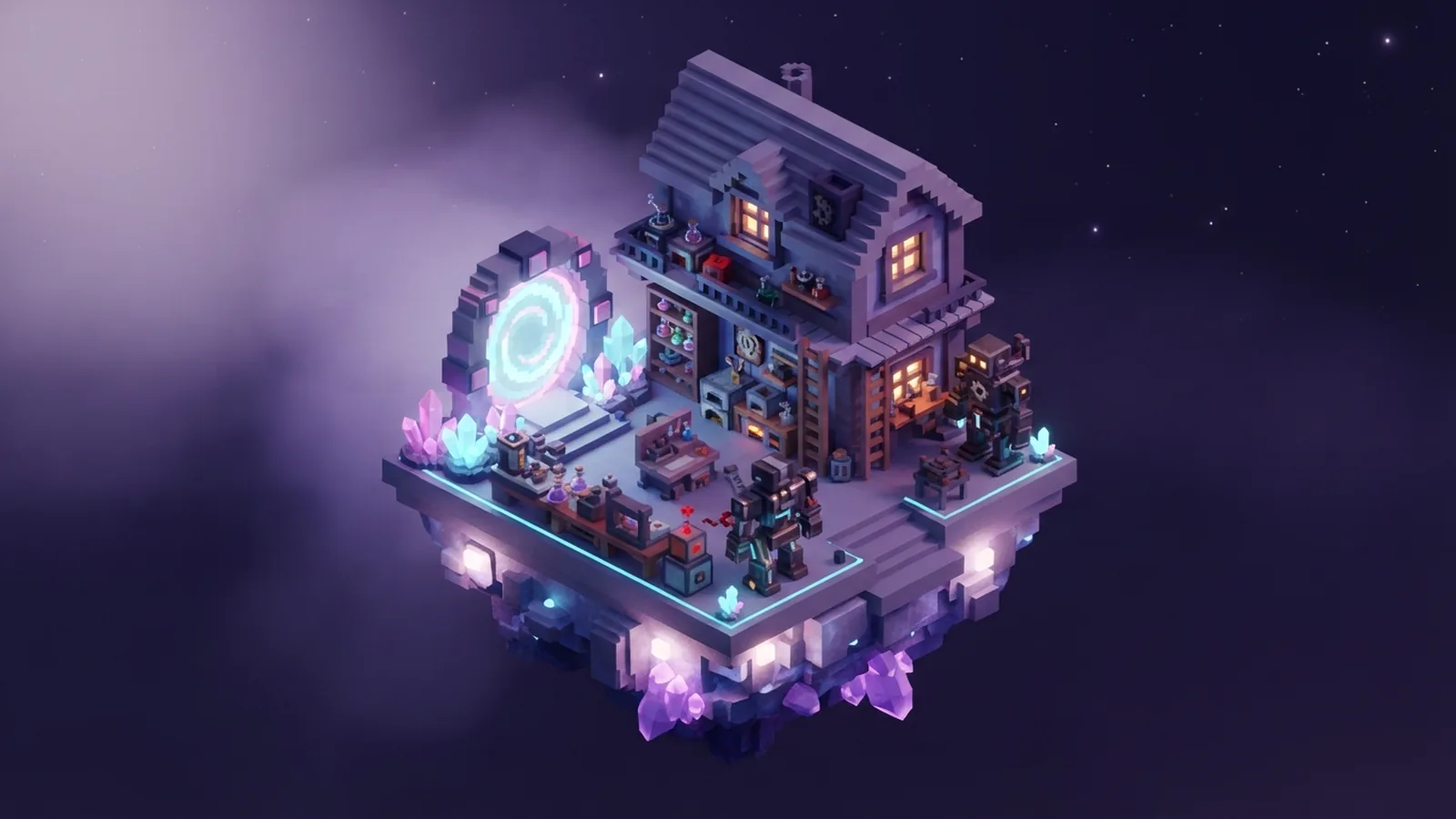
Minecraft mods are player-made changes that add features or alter parts of the game. They can add new blocks, creatures, tools, and worlds. Some change how existing systems work, such as farming, travel, or combat. In short, mods let players shape Minecraft around the way they want to play.
Most Java Edition mods run through a mod loader, such as Forge or Fabric. A loader helps Minecraft start and lets compatible mods work together. Mods can range from one small change to a large set of new systems. They are not the same as official updates, so you choose which ones to install.
- Content mods add items, blocks, creatures, or places.
- Utility mods improve maps, controls, or inventory tools.
- Overhaul mods change core gameplay, such as world growth or combat.
Many mods are made by fans and shared with the modding community. That community also creates guides, mod packs, and tools. Read each mod’s page before you install it. Its description should explain what it adds and which game versions it supports.
How Mods Change the Game
Mods can make a familiar world feel new without changing your basic goal. A map mod can help you track explored areas. A storage mod can sort items or add better ways to move them. New recipes can also give builders more choices for a base.
Other mods suit players who want a bigger change. A technology mod may add machines and linked crafting steps. A world mod can create new biomes or structures to explore. Some mods focus on smoother play, with options that can help on older computers.
The best Minecraft mods depend on what you enjoy. A builder may want new blocks, while an explorer may prefer fresh places to find. Check how much a mod changes the game before adding it. A small utility mod can fit into many worlds, but a major overhaul may call for a new save.
Popular Mods to Try First
Popular mods often solve a clear need or offer a fresh way to play. JEI, short for Just Enough Items, helps players look up item recipes. JourneyMap can show explored areas on a map. These tools can make large builds and long trips easier to manage.
For a deeper change, Create adds machines built from moving parts. Biomes O’ Plenty adds many new places to explore. These examples suit different play styles, so you do not need to install them all. Start with one or two that match your goal.
- JEI: recipe lookup and item details.
- JourneyMap: map tools for travel and exploration.
- Create: mechanical builds and moving machines.
- Biomes O’ Plenty: new biomes and world variety.
Mod names can appear in more than one version or loader. Check the exact project page, not just a name in a video or list. Read recent reviews and notes from players with your game version. They can reveal known bugs or missing features.
How to Install Minecraft Mods
The steps below apply to Java Edition. Back up your worlds first, especially if you plan to add mods to an old save. Some mods add blocks or items that vanish if you later remove the mod. A backup gives you a way back.
- Check your game version. Open the launcher and note the Minecraft version you plan to use.
- Pick a mod loader. Choose Forge or Fabric based on the mod’s listed support.
- Install the loader. Get its installer from its official project source, then follow its setup steps.
- Get the mod file. Use the mod’s trusted project page. Match its game version and loader.
- Place the file in the mods folder. Keep the downloaded file in its original format. Do not open or unpack it unless the mod maker says to.
- Start the matching game profile. Check that the mod appears and the game loads before adding more mods.
On many systems, the mods folder sits inside the Minecraft data folder. The launcher or loader may create it after setup. If it is missing, check the loader’s setup notes for the right folder path. Do not put a Fabric mod into a Forge setup, or the other way around.
Add mods one at a time when testing a new set. If the game fails to start, remove the last file and try again. This simple check helps you find the cause faster. Mod packs can save time, but they still need the right game version and loader.
What Minecraft Mods Are Coded In
Most Java Edition mods are written in Java, the language used to build the Java version of Minecraft. Some mod makers also use Kotlin, which works with Java tools. Many mods rely on a loader’s tools and code rules. Those tools help connect a mod to the game.
People often ask what Minecraft mods are coded in because they want to make one. You do not need to code to install or play mods. To build one, learn basic Java first, then study the tools for Forge or Fabric. A small first project could add one item or change one recipe.
Bedrock Edition uses a different system for add-ons and custom content. It is not the same as Java modding, and many Java mods will not work there. Check the edition listed on each project page before downloading. Edition and version both matter.
Safety and Version Compatibility
A mod can fail when it targets a different Minecraft version or loader. For example, a mod built for one version may not load in the next. Even a small game update can change code that a mod depends on. Match the mod, loader, and game version before you launch.
Mods also come from outside the game, so choose download sources with care. Use the project’s known page and avoid files shared through odd pop-ups or unrelated download buttons. Read the file details and comments before you open anything. A mod should not need your account password.
- Back up worlds before adding or removing mods.
- Check recent player reports for crashes or harmful files.
- Use a separate game profile for mod testing.
- Keep copies of working mod files and note their versions.
More mods can mean more chances for conflicts. If two mods change the same feature, they may not work well together. Add them in small groups and test your world after each change. If a save stops loading, restore the backup rather than making more changes to it.
Frequently asked questions
- What are Minecraft mods?
- Minecraft mods are player-made changes that add features or alter game systems. They can add blocks, creatures, tools, maps, or new ways to play.
- What Minecraft mods should I get first?
- Try one or two mods that fit your play style. JEI can help with recipes, while JourneyMap can aid exploration.
- How do I install Minecraft mods?
- Install a mod loader that supports your chosen mod, then place the matching mod file in the mods folder. Check game version and loader fit before starting the game.
- What are Minecraft mods coded in?
- Most Java Edition mods are written in Java, though some use Kotlin. Bedrock add-ons use a different system.
- Are Minecraft mods safe to download?
- Mods can be safe when you get them from trusted project pages and check recent user reports. Back up worlds, avoid suspicious download buttons, and never share your account password.
- Why does a Minecraft mod need a matching game version?
- Mods rely on game code that can change between versions. A mismatch may stop the mod from loading or cause crashes.
Related reading
How Do You Craft a Pickaxe in Minecraft?
Gather the right materials, place them in the grid, and craft your pickaxe.

How Do You Plant Beetroot in Minecraft?
Find seeds, plant them on tilled soil, and turn beetroot into food, dye, or trades.
How Much Data Does Minecraft Use Per Hour?
Minecraft often uses about 40MB per hour, but servers and updates can use more.