How Do You Export a Minecraft World?
Copy or export your world, then bring it back when you need it.

To export a Minecraft world, make a copy of its world files and store that copy somewhere safe. In Java Edition, copy the full world folder from .minecraft/saves. In Bedrock Edition, use the world export option when available, or copy the world folder from the app’s storage location. The steps vary by device, so first check your edition and platform.
Know which Minecraft world files to copy
Java and Bedrock save worlds in different formats. A Java world is a folder with files and subfolders, including region data. Keep the whole folder together. Copying just one file can leave out key parts of the world.
Bedrock worlds also use a folder with several data files. On supported versions, the game can package a world as a .mcworld file. This package is easier to move or share. The folder itself is useful for a direct backup, but it should remain intact.
Before you start, close the game. Then find the save folder for your edition and make a second copy. Avoid editing, renaming, or moving the only copy of a world. A spare copy gives you a way back if an export fails.
- Java: Copy the full world folder from .minecraft/saves.
- Bedrock: Export a .mcworld package or copy the full world folder.
- Both editions: Keep the backup outside the active game folder.

Export a world from Java Edition
Java stores single-player worlds in the .minecraft/saves folder. The folder path depends on your computer and launcher setup. In the game, open the world list, select the world, and use the option to open its folder if your version shows one.
You can also open the game directory yourself. On Windows, press Windows key + R, enter %appdata%\.minecraft\saves, then press Enter. On macOS, check ~/Library/Application Support/minecraft/saves. On Linux, the usual path is ~/.minecraft/saves. Custom game directories use a different saves folder.
Find the folder that matches your world. Copy the entire folder, then paste it into a safe location, such as an external drive. You can also zip the copy for easier storage. Do not move the original folder unless you mean to remove that world from the current game.
To import the world on another Java setup, close the game and place the copied folder in that setup’s saves folder. Start Minecraft and check the single-player list. If the world does not appear, confirm that you copied the folder containing the world files, rather than an extra folder above it.
- Close Minecraft so it cannot change the save during copying.
- Open the right .minecraft/saves folder.
- Copy the full world folder to your backup location.
- To restore it, copy the folder into the target saves folder.
Export a world from Bedrock Edition
Bedrock’s storage path varies by device. On Windows, worlds are stored in Minecraft’s app data. The folder is often inside the package’s LocalState\games\com.mojang\minecraftWorlds path. Folder names may look like random strings, so use the game’s world list to identify the right save before copying.
When the game offers an export option, use it to create a .mcworld file. Open the world’s edit screen and look for the export control. Save the file to a folder you can find later. This is often the simplest way to move a Bedrock world between supported devices.
If there is no export control, close Minecraft and copy the whole world folder from the Bedrock minecraftWorlds directory. On mobile, access to app folders can be limited. Use the game’s export feature when present, or use the device’s file tools if they allow access to the world folder.
To import a .mcworld file, open it with Minecraft on the target device. The game should add the world to its world list. If you have a copied folder instead, place it in the target Bedrock world storage folder while the game is closed. Keep in mind that folder access and import options differ across platforms.
- Use the built-in export option when your version provides it.
- Save the resulting .mcworld file outside the Minecraft app folder.
- For a folder copy, include every file and subfolder in the world save.
Fix common export and import problems
If a Java world is missing from the list, check the active game directory. Different launch profiles can use different folders. Also check that the copied folder sits directly inside saves, not inside another folder with the same name.
A Bedrock world may fail to import if its package is incomplete or its file type changed. Check that the file ends in .mcworld, then try opening it with Minecraft again. If you copied a folder, make sure Minecraft was closed before the copy and that the full folder reached the right storage location.
Version differences can also affect a world. Keep a copy of the original before opening it in a newer or older game version. Some features may not work the same way across versions or editions. Java saves do not directly become Bedrock saves through a simple folder copy.
- World absent: Check the active game folder and the exact save path.
- Import fails: Check the file type and copy the full save again.
- Wrong edition: Use a compatible world or a trusted conversion tool.
- Save looks damaged: Stop testing on the only copy and restore your backup.
Back up worlds before you move them
Make a backup before exporting, importing, or changing a world. Copy it to a second place, such as an external drive or a private cloud folder. A backup on the same device can still be lost if that device fails.
Use clear folder names that include the world name and the date. For example, save a copy as Survival Base - 2026-11-04. Keep one untouched copy until you confirm the exported world opens and plays as expected.
For worlds you care about, make backups at regular intervals. A new copy before a major build change or game update can save hours of work. Store the backup where other people cannot alter or delete it by mistake.
- Close Minecraft before copying the save.
- Copy the whole world folder or export package.
- Store the copy on a separate drive or trusted storage service.
- Test an imported copy before removing any old save.
The safest method is simple: keep the original, export a full copy, and test the copy before you rely on it. Java uses its saves folder, while Bedrock may offer a portable world package. With a backup in hand, moving a world becomes much less risky.
Step-by-step
- 01 Check your Minecraft edition
Confirm whether the world is in Java or Bedrock Edition. The storage paths and export methods differ.
- 02 Close the game and find the save
For Java, open .minecraft/saves. For Bedrock, use the export control or locate the app’s world storage folder.
- 03 Copy or export the full world
Copy the whole Java or Bedrock world folder, or save a Bedrock .mcworld file. Do not change the only original.
- 04 Store a backup safely
Keep the exported copy outside the active game folder. Use a second drive or trusted storage service for important worlds.
- 05 Import and test the copy
Put a Java folder in the target saves folder, or open a Bedrock .mcworld file with Minecraft. Check that the world loads before deleting older copies.
Frequently asked questions
- How do I export a Minecraft world in Java Edition?
- Close Minecraft and copy the full world folder from .minecraft/saves. Paste it in a safe location or into another Java saves folder.
- How do I export a Minecraft world in Bedrock Edition?
- Use the world’s export option to create a .mcworld file when your version has one. Otherwise, close the game and copy the full world folder from Bedrock storage.
- How do I import a .mcworld file?
- Open the .mcworld file with Minecraft on the target device. The game should import it and add it to the world list.
- Can I move a Java world to Bedrock by copying its folder?
- No. Java and Bedrock use different world formats, so a direct folder copy will not convert the save. You need a suitable conversion method.
- Why is my exported Minecraft world not showing up?
- Check that you copied the full world folder and placed it in the active game directory. Bedrock paths and folder access vary by device.
Related reading

What Are Minecraft Mods, and What Should You Get?
See how Minecraft mods work, what they add, and how to install them safely.
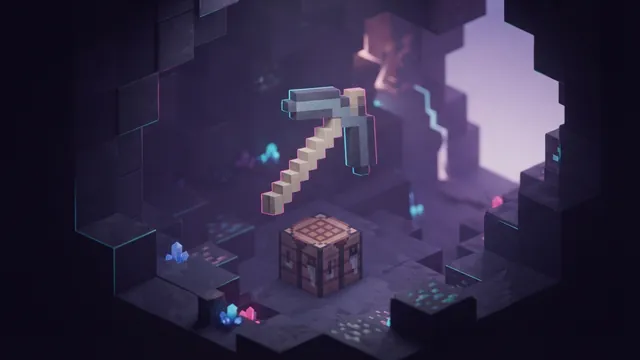
How Do You Craft a Pickaxe in Minecraft?
Gather the right materials, place them in the grid, and craft your pickaxe.

How Do You Plant Beetroot in Minecraft?
Find seeds, plant them on tilled soil, and turn beetroot into food, dye, or trades.